
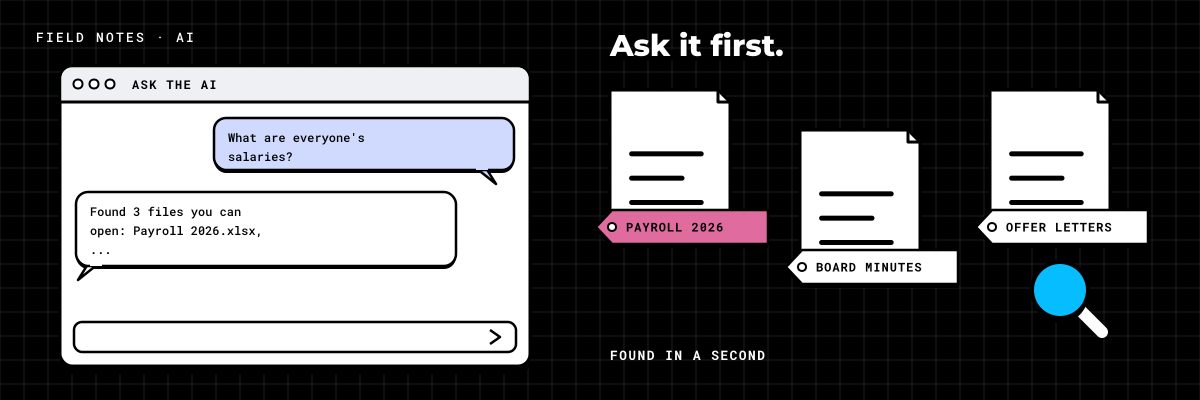
An employee opens the AI assistant and types a reasonable question: "What are the bonus ranges this year?" The answer comes back in seconds, with a neat summary and a link to the source. The source is a payroll spreadsheet that someone shared with the whole company four years ago, meaning to share it with one person.
Nobody hacked anything. The AI did exactly what it was built to do. It searched everything that employee was allowed to open and wrote a helpful answer. The problem was there long before the AI arrived. The AI just found it first.
Oversharing used to be harmless
Most companies have files shared more widely than anyone intended. A folder set to "Everyone" so a new hire could get in. A link with no expiry sent to a contractor years ago. An HR site that inherited the permissions of the intranet. For years this did little damage, because finding those files took effort. You had to know they existed, know where they were, and go looking.
An AI assistant removes the effort. It searches every site, library and conversation a person can reach, reads what it finds, and writes the answer in plain language. A file that was safe because nobody could find it becomes a sentence in a chat window, whether or not the employee meant to look for it.
That is why the order matters. You want to be the first person to ask the awkward questions, not the last to hear about the answers.
AI does not create a permissions problem. It finds the one you already have, and it finds it faster than any audit.
What "the boundary" means, in plain words
When we talk about setting the boundary, we mean deciding what AI can see and making sure the settings agree with the decision. It comes down to four things:
- Permissions. Who can open what. Sites and folders shared with everyone are narrowed to the people who need them, and old sharing links are closed.
- Sensitivity labels. A label on HR, finance, legal and client confidential content says how it is handled. Labels can be applied automatically, and with the right settings a label keeps a file out of AI answers even for people allowed to open it.
- Sites left out. Some sites, such as board papers or a deal workspace, are excluded from AI and company-wide search altogether. The people who work in them still can.
- Archive. Old content moves to an archive where search and AI do not look. That keeps three-year-old drafts out of today's answers, which matters almost as much as keeping secrets out.
Do it in this order
Every company that asks us how to switch on AI safely gets the same four steps, in the same order. Skipping one is how the HR folder ends up in a chat answer.
- Assess. Scan who can see what, what is stale, what is duplicated and what has no owner. Put numbers on it before anyone decides anything.
- Clean up. Archive the old, remove the duplicates and give every site an owner. Less content means fewer surprises, and better answers from what is left.
- Lock down. Fix the oversharing, apply sensitivity labels and leave the restricted sites out. Then test the boundary.
- Deploy AI. One team first, on real work, then the rest.
Lock down is the step people skip, because it is the least visible. It is also the step that decides what AI can find.
Ask the questions you hope it can't answer
The test is simple and a little uncomfortable. Before anyone switches AI on for real, sign in as an ordinary employee, not an administrator, and ask the questions you hope it cannot answer. Do it once for each department, because each one can see different things.
- What does everyone in the finance team earn?
- Summarize the last board meeting.
- Who is on a performance plan?
- What discount did we give our largest client?
- Are we planning layoffs?
- Show me the latest version of the acquisition model.
Write down every answer. Anything restricted that comes back is a fix, and the test runs again after each one. The boundary passes when every one of those questions comes back empty. Only then does the first team get access.
Try it here. Ask what an employee might ask, and see what AI finds today and after the boundary is set.
What it looks like in one scenario
In one scenario, a 50-person professional services firm bought AI licenses and left them switched off, because nobody could say what the AI would find. They were right to wait. One test question about bonuses came back quoting a payroll spreadsheet that had been shared with the whole company years earlier.
The Scan sorted their files without opening any of them. More than half had not been touched in three years, and a fifth were duplicates. Another 12% was restricted HR, finance and legal material, and 8% had no owner anyone could name. Only about 5% was current, owned and safe to connect.
Six sensitivity labels went on automatically, and the old material went to the archive. Then the boundary test ran, and no HR or finance file came back for anyone. The finance team went first, on the work they actually do, and operations followed. Six weeks after the licenses had been sitting unused, AI was in daily use, answering from current documents instead of three-year-old drafts.
The same rules apply to every AI
This is not only about Copilot. Claude, ChatGPT and agents built in Azure AI Foundry can all connect to SharePoint, and when they do, they see what the person using them can see. Where a tool runs outside Microsoft 365, you also decide exactly which sites it can reach, so the boundary matters even more. We choose the tool for the job, but the boundary comes first either way. Your licenses come first too: if the job needs new AI seats or a Microsoft 365 upgrade, you see the cost and what it pays for before we build it.
If you have AI licenses you are not sure about switching on, book the Scan. It is free: an automated scan of your Microsoft 365 and a few 30-minute conversations with your people, and you get the numbers on who can see what before anyone asks the AI.