Here is a file from a typical engineering file server:
S:\Projects\2047 Pipeline Survey\04 Deliverables\P-2047-RPT-003 Rev C DRAFT 2024-03-12.docx
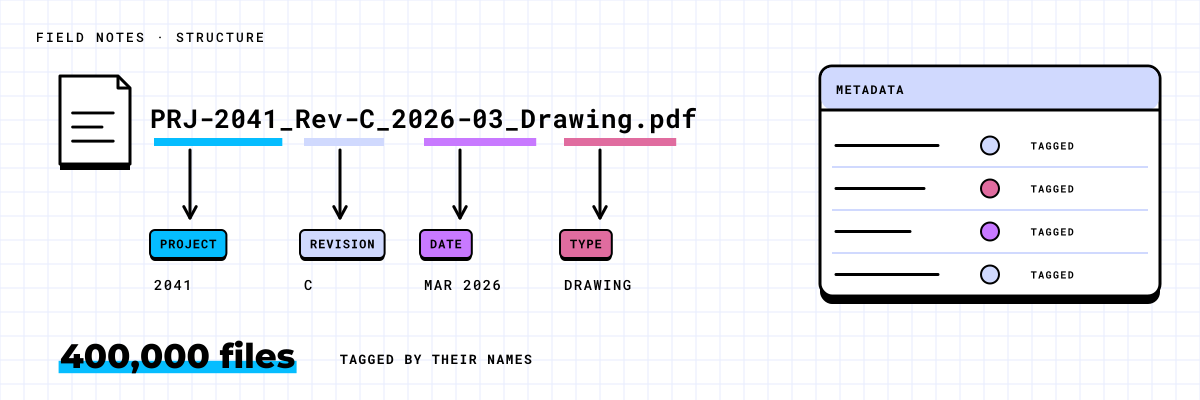
Nobody tagged it. Nobody filled in a form. But the name and the path already say what it is: a report, the third one, for project 2047, at revision C, still a draft, dated March 12, 2024, filed with the deliverables. That is six pieces of metadata, written down by the person who saved it, years before anyone asked.
Most file servers are full of names like this. The question before a move is whether you read them, or ask people to start again from nothing.
The tags are already in the names
People who name files carefully are rarely thanked for it, but they leave a lot behind. Look through any project share and the same pieces turn up again and again:
- Project or job numbers: P-2047, 2047, J2047-03.
- Document types: RPT, DWG, SPEC, CALC, MEMO, or the full word.
- Revisions: Rev C, R2, v3, _final, _final2.
- Status: DRAFT, ISSUED, IFC, For review, Signed.
- Dates: 2024-03-12, 20240312, 12Mar24, and the risky ones like 031224.
- Client codes and division names, usually in the folder path rather than the file name.
The path carries as much as the name. A photo called IMG_2231.jpg tells you nothing. The same photo in 2047 Pipeline Survey\03 Field data tells you the project and what kind of file it is.
Read them during the move, not after
The usual plan for metadata is to move the files first and ask people to tag them later. Later never comes. Nobody is going to open 400,000 files and fill in four fields on each, and the people who try pick the first option in every dropdown so they can get back to work.
A move is the one time every file passes through your hands anyway. The scan already lists every name and path. Reading them costs very little at that point: a set of rules for each naming habit in the company, tested against the scan, then applied as each file lands in SharePoint. The files arrive with their project, type, revision and date already filled in.
In one scenario, a 60-person engineering firm moved off a 2 TB file server. The Scan read every file in a day without opening one, and every folder was matched to a live project or marked closed. Only the live third, about 700 GB, moved, one division a night over four nights. Because every folder was already tied to a project, every file landed with its project number, and nobody was asked to tag anything.
Paste one of your own messy file names and see the tags it already carries, and how sure the reading is about each one.
A confidence score on every tag
Not every name is as tidy as the one at the top. So every tag gets a score for how sure the reading is, and the score decides what happens next.
- High: the name and the path agree. P-2047 in the name, 2047 in the folder. The tag goes in.
- Medium: one clue and no contradiction. Rev C in the name, nothing in the folder. The tag becomes a suggestion for the owner to confirm.
- Low: the clue could mean two things. Is 031224 March 12 or December 3? The field stays blank.
An owner review queue for the rest
The suggestions that need a person go to the owner of each area, not to IT and not to everyone. Each owner gets a short list, grouped so it can be answered in batches: these files in one folder all look like drawings for project 2047, confirm or correct. An owner who knows the work can clear a folder in minutes.
The queue is also where the rules get better. When an owner corrects the same pattern a few times, the rule changes, and the next wave of files comes in cleaner.
Why a blank is better than a wrong tag
It is tempting to fill every field. A library where every file has a project, a type and a status looks finished. But a wrong tag does more damage than a missing one.
A blank is honest. It shows up in a view called Missing tags, and someone fills it in. A wrong tag hides. A drawing marked Issued when it is still a draft goes to a client. A filter for project 2047 that quietly includes files from 2074 gives someone the wrong answer, and they have no reason to doubt it.
Wrong tags also teach people not to trust the filters. Once that happens, they go back to clicking through folders, and the metadata was wasted.
Set the bar high and leave the rest blank. People forgive a missing tag. They stop using a library with wrong ones.
What people see on day one
The folders still exist for people who like them. Next to them, the library now has views that were impossible on the old server: every report for project 2047, the latest revision of every drawing, everything still in draft, everything issued last month. People find documents by what they are, not by where somebody filed them.
The same tags keep working after the move. Retention rules can key off document type. AI can be pointed at issued documents only, so it does not quote a draft. A dashboard can count deliverables by project without anyone keeping a list.
If you want to know how much of your own metadata is already sitting in your file names, book the Scan. It is free: an automated scan that reads names, paths and dates without opening a file, plus a few 30-minute conversations with the people who do the work.